Field Tablet

ADF Field Tablet quick start

Congratulations! You have received your new ADF Field Tablet and you're ready to get started with your digital investigations.

What's in the box?

Here is what you will find when you open the carrying case:
  • Field Tablet (Dell Latitude or Microsoft Surface Go)
  • The latest ADF application (ADF PRO or MDI) pre-installed
  • A 500GB USB Collection Key for live and boot scans (ADF PRO only)
  • 4-port USB 3.0 hub
  • USB 3.0 to USB-C adaptor
  • Android cables: USB-A to Micro-USB; USB-A to USB-C
  • iOS cables: USB-A to iOS Lightning; USB-A to iOS 30-pin

Quick start

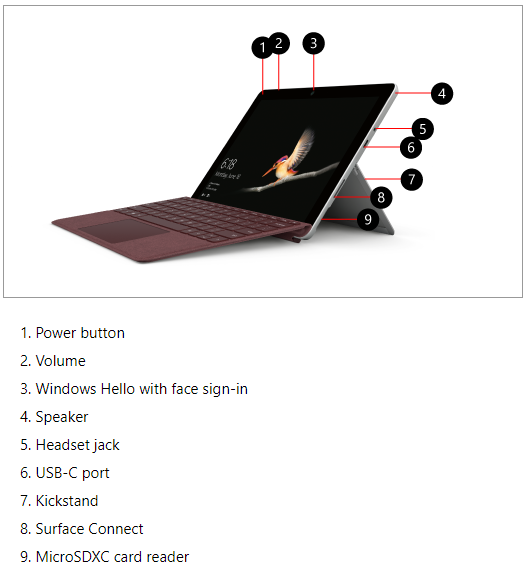
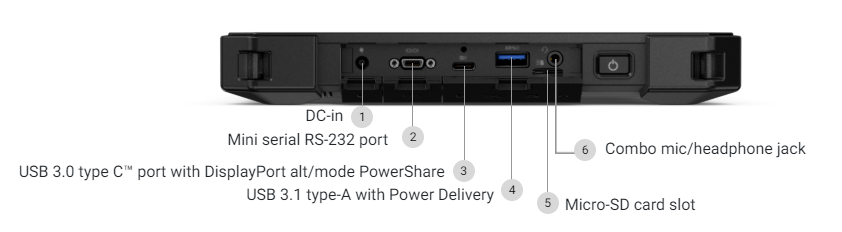
  1. Connect the power cord to the DC-in (1) or Surface Connect (8) and an electrical outlet.
  2. Turn the tablet ON.
  3. Log in with the credentials provided by ADF via email.
  4. It is recommended to change the password (see these instructions).
  5. Start the ADF application from the Start menu (button in the lower left corner of the screen).
  6. Continue learning about how to use the ADF application with our Getting Started page.
  7. Use the USB type-A port (Dell port 4) or USB type-C port (Surface port 6) to connect write-blockers and target mobile devices.

Dell tablet

Dell Latitude Field Tablet with its numbered ports

Microsoft Surface Go

Microsoft Surface Go Field Tablet with its numbered ports

Keep your Field Tablet secure and up to date

Windows Update

It is very important that you let Windows update itself whenever a new version is available. If you use the Field Tablet offline, make sure to connect it to the Internet monthly for one full day so it can upgrade itself.

Dell Support Assist

Dell Support Assist is smart technology which keeps your Dell tablet running at its best. If you use the Dell tablet offline, make sure to connect it to the Internet monthly for one full day so it can upgrade itself.

Get your ADF certification

Have more questions? Please contact our Support team. We're here to help you!