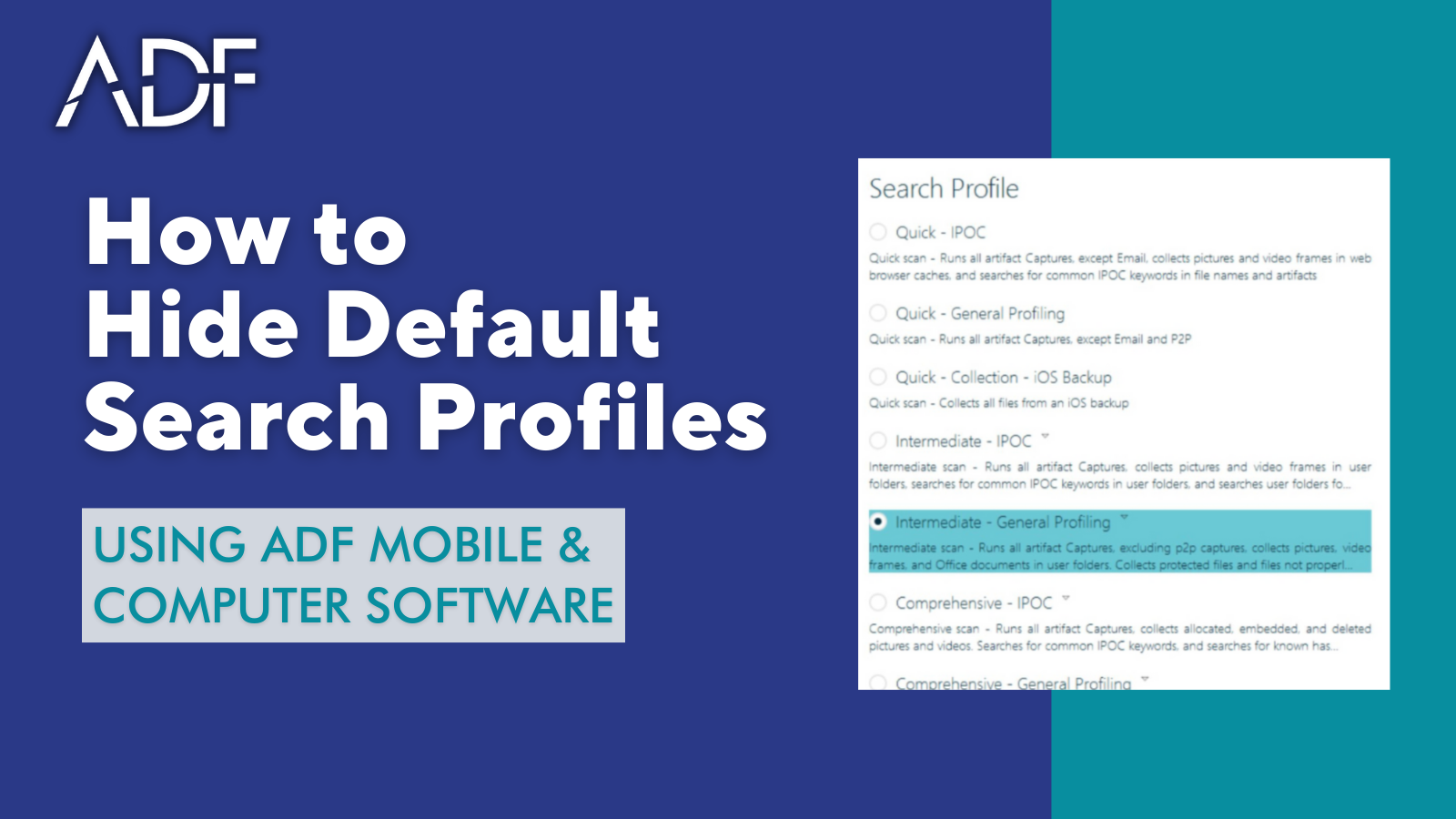
Import and Export Digital Forensic Search Profiles

In this short How To video, you’ll learn how to import and export an ADF digital forensic Search Profile. This allows investigators to create a Custom Search Profile on one computer and export it so that it is available to be imported into another installation on another computer so forensic examiners or senior investigators can create and share profiles with:
- Colleagues and team members
- Fellow Task Force members
- Remote investigators performing onsite examinations
- Field investigators
An exported Search Profile can only be imported within the same version of Digital Evidence Investigator and Triage-Investigator and can be shared between the two.
To Export a Search Profile
To export a Custom Search Profile, click on Setup Scans on the Home screen and then highlight the Search Profile to export and click the Export icon to the right. When the Export button is clicked, a folder browser dialog window will appear to select the location the exported profile will be saved. After a folder has been selected a message will be displayed when the exporting process is complete. Exported Search Profiles will be named after the Search Profile and contain a profile file Extension. Pause and reset installation.
To Import a Search Profile
To import a Custom Search Profile, open DEI on the other installation, click on Setup Scans on the Home screen and then click on the Import Profile button. Clicking on the import button will open a file browser dialog window; from here the profile to import can be selected. After the profile has been imported a message will be displayed to show the process has been completed. Pause and reset installation
To Import a Search Profile into Triage-Investigator (TINV)
To Import that same Search Profile into Triage-Investigator, open Settings from the Home Page, then Manage Search Profile, then Import Profile. The custom Search Profile is now a part of the Search Profile Library.