Archiving Phone Backups
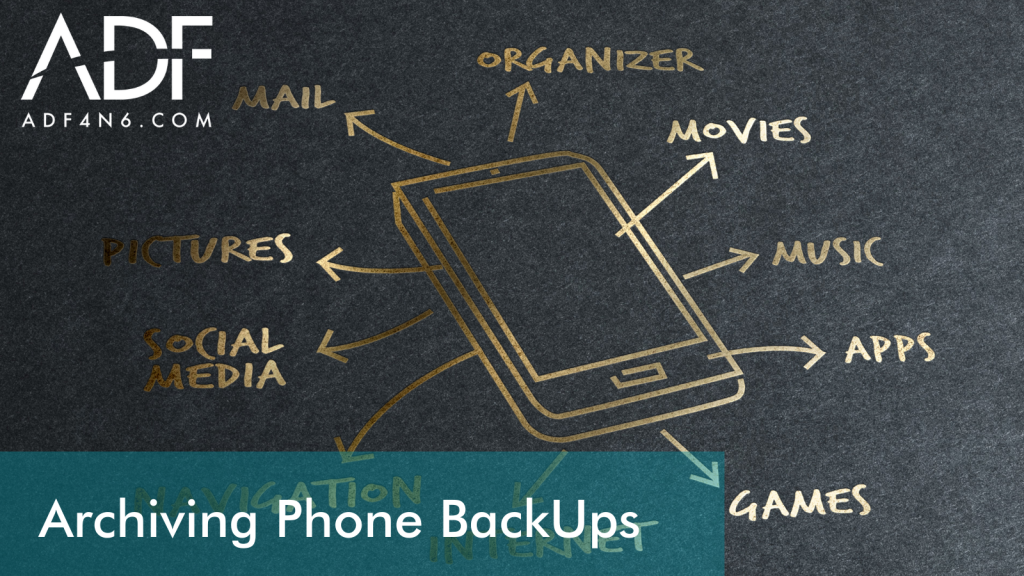
With any of the ADF Mobile products, if you are using the default settings, the mobile backups are being saved to the local drive. The mobile backups can be quite large and quickly fill up your drive leaving you no storage space.
Let’s take a look at how to archive your mobile backups with or without the corresponding scan results.
In this video, Rich shows you how to Archive your Mobile backup along with the corresponding Scan Results.
Settings
The default data path settings are configured for the local device and are located in the following location. Most important for us here are Scan Results and Phone Backups.
Scan Results
C:ProgramDataADF Solutions Incv4ScanResults (By default Program Data is a hidden folder
To unhide on a Windows 10 machine open FIle Explorer → View → Hidden Items
Android / iOS backup
C:ProgramDataADF Solutions Incv4phone backup
Best Practice
Set the data paths to a drive other than the system drive
Save the backups to a storage drive capable of holding large amounts of data and then adopt one of the archiving methods that follow.
Once your default location is set and you have completed a phone back up, scan, analysis and you are ready to archive, you can use the following method
First, we need to verify that the scan results will match the backup.
-
Open the scan results, locate Target Devices on the Summary Page, and note
-
Device name
-
Operating System
-
Serial number.
-
Locate Scan information on the Summary Page and note
-
Date
-
Time
-
Match this information to the backup folders located in the Phone backup folder
-
Move this folder to your Archive location
-
Save the Scan Results in a Stand-Alone viewer to the same location
-
Scan results can then be deleted from the Scan Results Menu
The stand-alone viewer is the complete scan results, with all your tagging filtering sorting, and commenting in place. It is saved into a portable viewer that can be used to further analyze and report and does not require a license. These archived results can be opened at any time just like the day they were archived with no worry about version, license, or backward compatibility.
You may also be interested to learn: