Dropbox Forensics for iOS Cloud Storage Capture

As an investigator you want to be prepared to quickly collect evidence on-scene. This means, when performing smartphone forensics, you need to have the best tools to capture the evidence you encounter during your triage, including cloud storage such as Dropbox for iOS.
In this short How To video, ADF’s Director of Training and forensic expert, Rich Frawley demonstrates how to scan an iOS 7 device to show you how to capture Dropbox cloud storage evidence. According to Dropbox – Dropbox offers one central hub for online file storage, file sharing, and syncing – and you can access a Dropbox account with a mobile app for iOS.
Dropbox Forensics for iOS Artifacts
One of the Dropbox features is the automatic syncing of camera uploads, which when Dropbox is opened on an iOS device, will automatically upload any images in the photo gallery. In this video, you’ll see a completed scan of an iOS 7 device with artifacts from Dropbox used to upload pictures automatically, as well as files that have been manually moved to Dropbox. 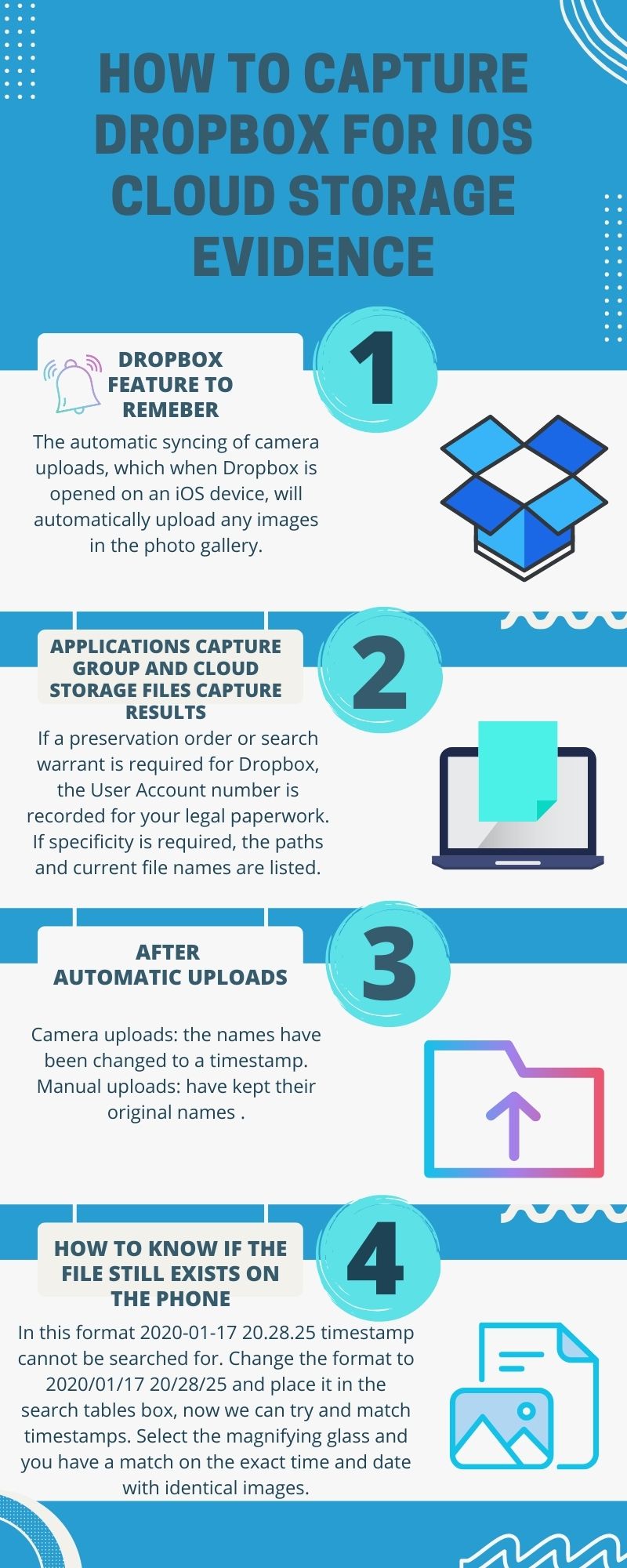
As you’ll see in this example, the investigator has 1,027 records located under the Applications Capture Group and Cloud Storage Files capture. If we take a look at the results we can see the file names and the path that they have been uploaded to, including the last action date
Based on this information, if a preservation order or search warrant is required for Dropbox, the User Account number is recorded for your legal paperwork. If specificity is required, the paths and current file names are listed.
There are a couple things to note about the automatic uploads, in this case the Camera uploads. The names have been changed to a timestamp. Manual uploads have kept their original names as shown with the files Sharing-Passwords and below.
Because of the autoname change conducted by Dropbox – here’s how you’ll know if the file still exists on the phone – one way to do this is to search for the timestamp the file has been named with, although it does require a little work.
In the video we take a look at one of the uploads with the timestamp of 2020-01-17 20.28.25. In this format the timestamp cannot be searched for, but if we change the format and place it in the search tables box, we can try and match timestamps. 2020/01/17 20/28/25. Here, you will notice the forward slash replaces the semicolon and the space is consistent. Now select the magnifying glass and you have a match on the exact time and date with six identical images. Do this for several of the uploads and you can make an educated decision.