How to Create an Acquisition of iOS and Android Devices in ADF Pro and MDI
Often, when investigators think of ADF Solutions, the first thing that comes to mind is rapid triage—getting to the critical evidence fast. And while our tools excel at that, they offer much more. We understand that your workflow isn’t always about racing against the clock. Sometimes, you need to manage a backlog, and sometimes, you need a workflow that prioritizes data preservation now, with analysis happening on your schedule later.
Whether you are working a high-volume case or simply managing your time, understanding the difference between Scan and Acquire is the key to unlocking true flexibility in your investigations.The “Scan” vs. “Acquire” Distinction
It is important to remember that both Scan and Acquire create an advanced logical acquisition of the device. The difference lies in when you choose to process that data.
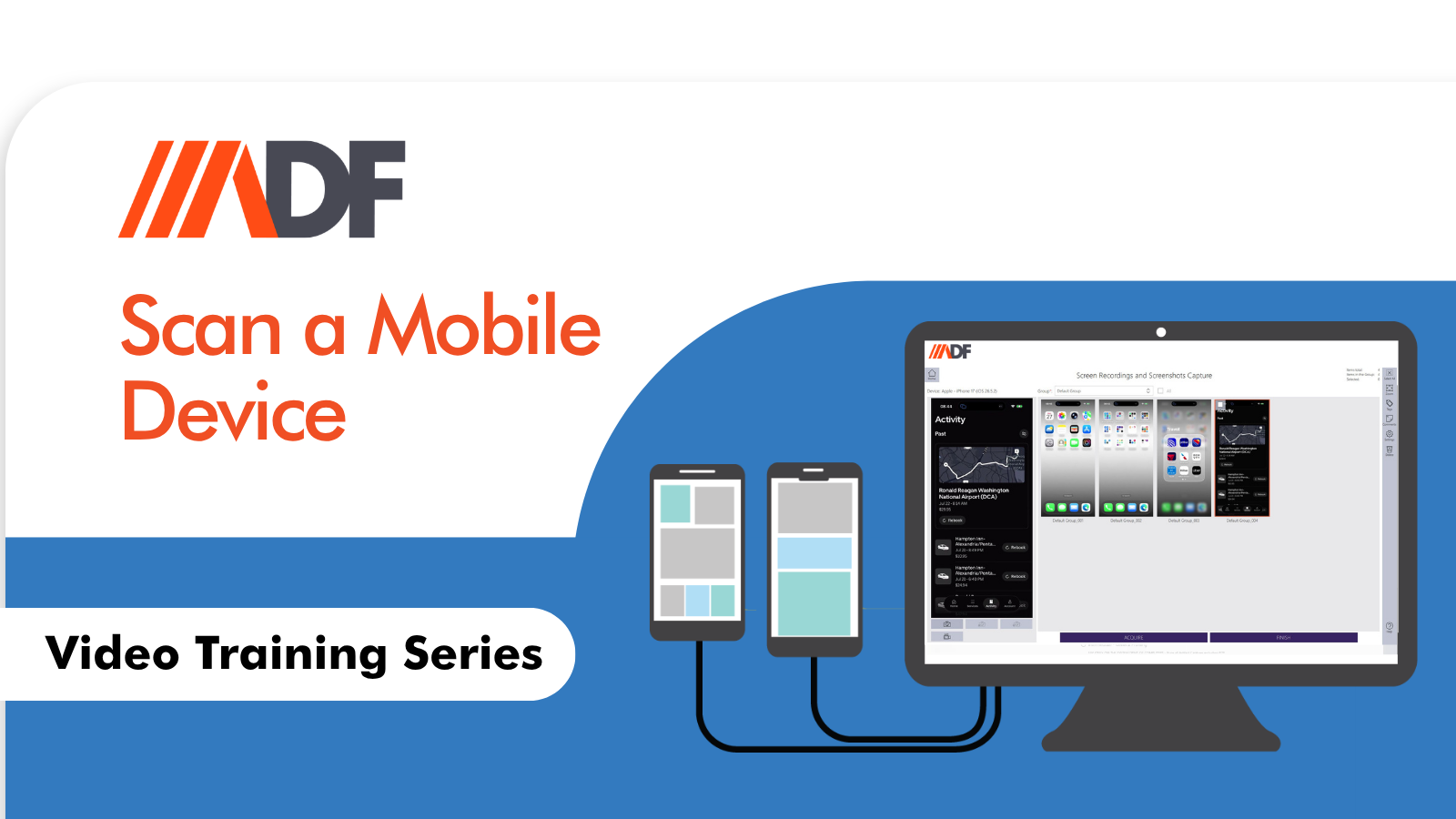
- Scan: This is your all-in-one, high-speed solution. It handles everything in a single, streamlined process: connect, screen capture (optional), acquire, parse, and analyze. It is perfect when you need immediate results.
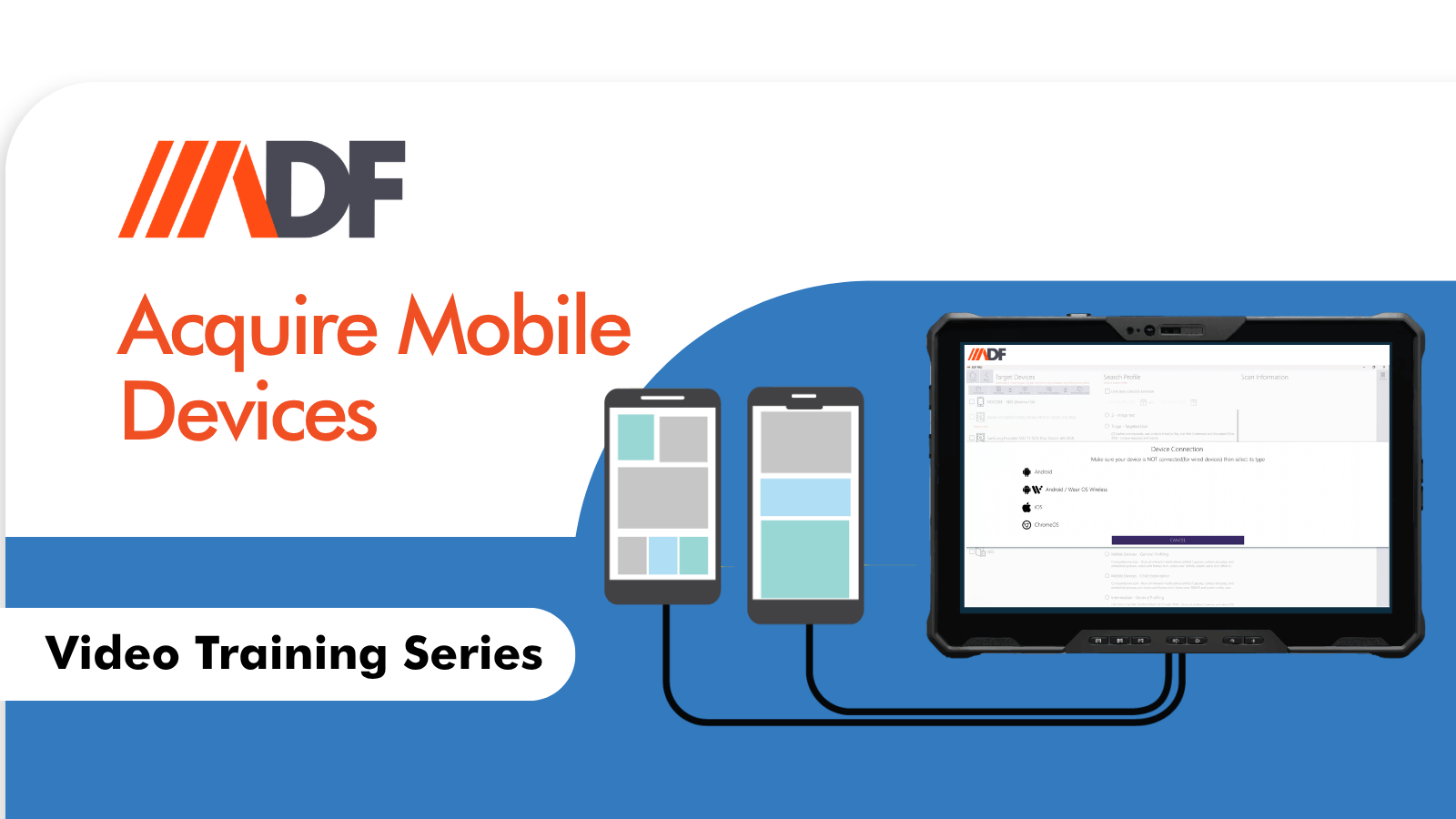
- Acquire: This is your workflow powerhouse for when time is not critical. It allows you to complete the acquisition first—securing the data—and then choose to scan or parse at a later time.
Why use the “Acquire” workflow?
Imagine you have a stack of seized devices that will be sent to a lab for further processing and potentially sitting in a queue or backlog.. The most important step is ensuring that “Advanced Logical Acquisition” is captured sooner rather than later with what you have. This will also allow you to parse and analyze data while your devices are off to the lab.
By utilizing the Acquire screen, you can rapidly secure your data from multiple devices, ensuring the evidence is safe and ready. Once the acquisition is complete, you can move on to the next device. When you are ready to dig into the details, you simply head to the Scan menu, select “Add Device Acquisition,” and point the software to your saved folder.
The process is designed to be straightforward, ensuring you spend less time configuring and more time investigating:
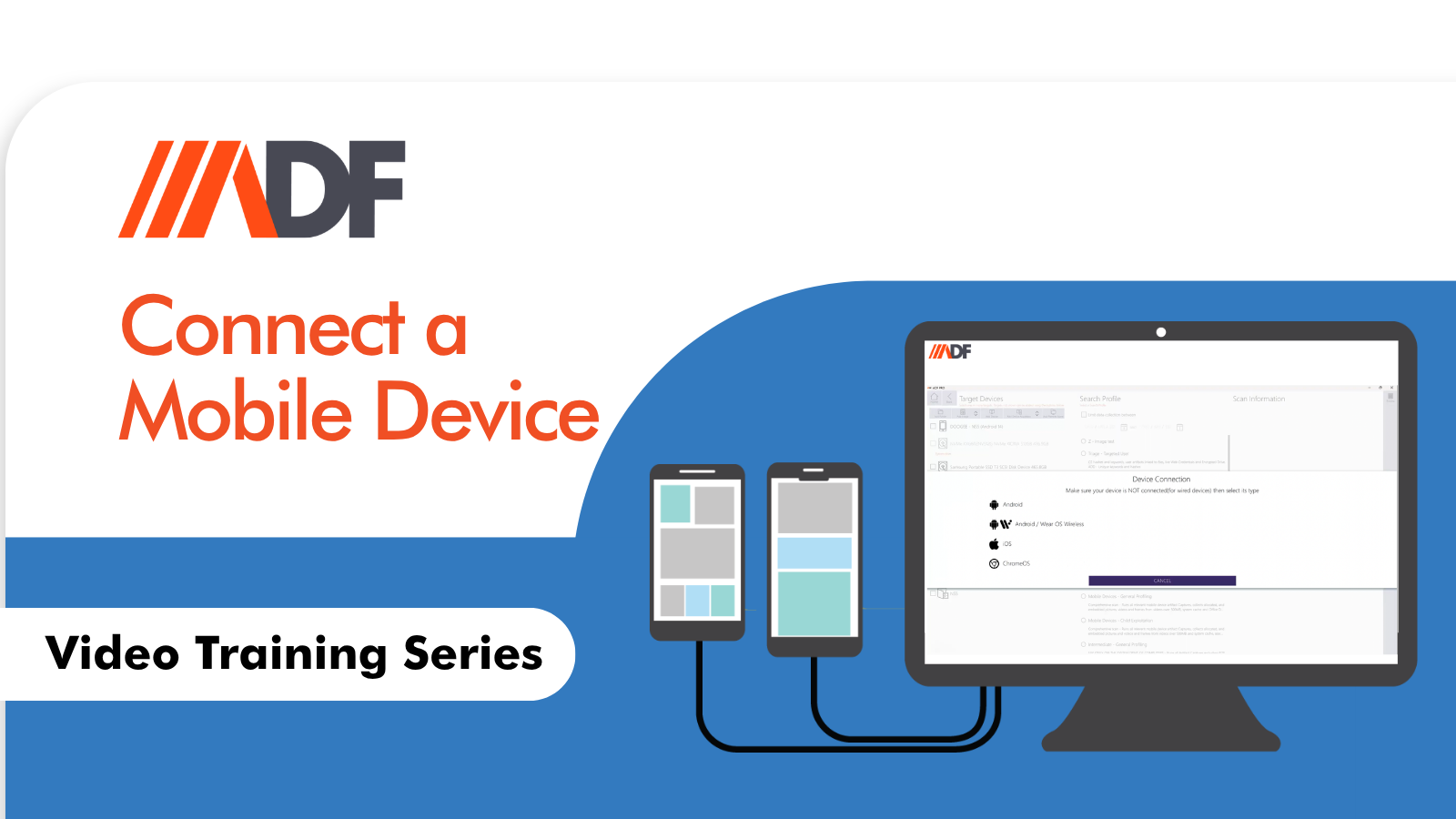
- Use the Connection Wizard.
- Select a Destination
- Name Your Acquisition
- Proceed
The power of ADF is that it adapts to your requirements. Whether you need the instant results of an all-in-one Scan or the strategic, paced workflow of an Acquisition, the control is in your hands.
Remember: Acquisitions and Scans are separate, powerful items in your toolkit. Use them to match the needs of your investigation, not the other way around.
Watch the video to learn more: